Installing NeoWiki
NeoWiki is pre-release software. It is not production ready, and breaking changes can land at any time without a migration path. Treat any install as an evaluation or pilot and run it on disposable data.
The Docker stack is self-contained and the fastest way to a working wiki, so use it for evaluation. The manual install adds NeoWiki to a MediaWiki you already run.
To set up the development environment instead, see the README on GitHub.
Method A: Docker
Prerequisites:
- Docker (or a compatible runtime such as Podman)
- Docker Compose v2+ (with the
docker composesubcommand, not the legacy standalonedocker-composev1. Verify withdocker compose version) - GNU Make
The below commands assume a Unix-like shell, so on Windows run them under WSL.
Download the ProfessionalWiki/NeoWiki repository and run this from its root:
make demoThis pulls the latest demo image, starts the stack, installs the wiki, and loads the demo data. Later, make down stops and removes the containers, and make remove also deletes the data volumes. To move a running stack to the latest NeoWiki, see Upgrading.
For an empty wiki without the sample data, run make up && make install-db instead. That wiki has no Mapping:EDM page, so the stack's preconfigured EDM projection reports a failure on every save until you create that Mapping or remove its entry from $wgNeoWikiSparqlStores.
Open http://localhost:8484 and log in as AdminName with the password AdminPassword.
Optional: share the demo with others
By default, the stack runs on localhost. To let others reach it, host it on a server. Edit Docker/.env and change every value marked # Change for production, which covers the passwords and MW_SERVER. Then start the stack with the server profile, which adds automatic HTTPS through Caddy. Run it from the repository root so the follow-up make commands target the same stack:
docker compose -p neowiki-neowiki --env-file Docker/.env -f Docker/docker-compose.yml --profile server up -dThen run make install-db and make import-demo-data against it. This is still an evaluation setup, not a production deployment.
Method B: Add to an existing MediaWiki
Use this to add NeoWiki to a MediaWiki you already run. You provide the surrounding services yourself.
Requirements
| Requirement | Notes |
|---|---|
| MediaWiki 1.43.0 or later | |
PHP 8.3 with ext-json | |
| Composer | Installs NeoWiki's runtime dependencies. No vendor/ is shipped. |
| Neo4j 5.26.4 or later over Bolt | Optional. Needed for Cypher queries. |
| Node.js 24 or later | Needed only to build the frontend bundle in step 2. |
These extensions are recommended. NeoWiki runs without them, but you lose the matching functionality:
- Scribunto adds the Lua API and its
nw.*functions. - CodeEditor adds JSON syntax highlighting when you edit Schema, Layout, and Mapping pages.
- ParserFunctions is commonly used alongside NeoWiki's parser functions.
Check the extension out at extensions/NeoWiki/ under your MediaWiki root:
git clone https://github.com/ProfessionalWiki/NeoWiki.git extensions/NeoWiki1. Install Composer dependencies
You install NeoWiki's runtime dependencies through MediaWiki's Composer merge plugin. Add NeoWiki's composer.json to your wiki's root composer.local.json:
{ "extra": { "merge-plugin": { "include": [ "extensions/NeoWiki/composer.json" ] } } }Then run this from the MediaWiki root:
composer update2. Build the frontend bundle
A fresh checkout ships no compiled frontend, so there is no UI until you build it:
cd extensions/NeoWiki/resources/ext.neowiki
npm ci && npm run build
This produces dist/neowiki.js and dist/neowiki.css.
3. Load and configure the extension
Add the following to your LocalSettings.php:
wfLoadExtension( 'NeoWiki' );

// Point both at your Neo4j instance; for a simple setup, use the same user for both.
$wgNeoWikiNeo4jInternalWriteUrl = 'bolt://neo4j:SECRET@neo4j-host:7687';
$wgNeoWikiNeo4jInternalReadUrl  = 'bolt://neo4j:SECRET@neo4j-host:7687';

// Recommended soft dependencies.
wfLoadExtension( 'Scribunto' );
wfLoadExtension( 'CodeEditor' );
wfLoadExtension( 'ParserFunctions' );
Without both Neo4j URLs set, NeoWiki's structured-data features still work. You lose the Cypher query surfaces ({{#cypher_raw}}, nw.query, POST /neowiki/v0/query/cypher).
4. Run the updater
Run this from the MediaWiki root:
php maintenance/run.php update --quickBuild the Neo4j projection from MediaWiki whenever it is out of sync with the wiki — after installing on a wiki that already has pages, since a page is otherwise projected on its next edit, and after data arrives by a path other than a normal edit (such as an import):
php maintenance/run.php NeoWiki:RebuildGraphDatabases5. Verify your install
Your install is complete once you can walk through Getting started on it.
With Neo4j configured, one more step checks its projection. On any page, add a Cypher query that lists the stored pages, independent of your data model:
{{#cypher_raw: MATCH (p:Page) RETURN p.name }}The result renders as JSON. If Neo4j is unreachable, it renders an error instead.
Optional: Pretty URLs for the Data tab
Serve the Data tab at /wiki/PageName/subjects instead of index.php?action=subjects with:
$wgActionPaths['subjects'] = "/wiki/$1/subjects";Key settings
These are the settings you are most likely to change. For the full list with descriptions and defaults, see the config section of extension.json.
| Setting | Purpose | Default | Required |
|---|---|---|---|
$wgNeoWikiNeo4jInternalWriteUrl | Bolt URL for writing the graph projection | none | For Neo4j features |
$wgNeoWikiNeo4jInternalReadUrl | Bolt URL for read and query traffic | none | For Neo4j features |
$wgNeoWikiEnableDevelopmentUI | Enables development-only UIs | false | No |
$wgNeoWikiEnableLua | Registers the mw.neowiki Lua library with Scribunto | true | No |
$wgNeoWikiEnforceValidation | Rejects writes that introduce new error-severity violations | false | No |
$wgNeoWikiAutoRenderMainSubject | Automatically renders a page's Main Subject as an infobox, or in full on a subject-first wiki | true | No |
$wgNeoWikiSubjectFirst | Puts Subjects before pages: see Choosing page-first or subject-first | false | No |
$wgNeoWikiSubjectPageNamespace | Namespace a subject-first wiki creates each Subject's own page in: see Choosing page-first or subject-first | 7480 (Subject) | No |
$wgNeoWikiDataLanguages | Languages the wiki's data is in: see Data languages | [] (the content language) | No |
$wgNeoWikiSparqlStores | SPARQL 1.1 graph stores to keep in sync and query, e.g. QLever | [] | No |
$wgNeoWikiAutoRebuildOnMappingChange | Rebuilds every store holding a Mapping's projection when that Mapping changes | false | No |
Choosing page-first or subject-first
You can make your wiki page-first or subject-first. The default is page-first, and you can change it in the on-wiki settings or with $wgNeoWikiSubjectFirst.
On a subject-first wiki, Subjects are stored in the Subject namespace by default. You can change this with $wgNeoWikiSubjectPageNamespace.
Data languages
$wgNeoWikiDataLanguages lists the languages the wiki's data is in, as BCP 47 language tags, such as [ 'de', 'fr', 'it' ]. When editing text with language, the editor offers them in this order beside each text, and starts a new text in the first of them the value lacks. Other languages stay one search away, and texts already in them keep their language. The default, an empty list, stands for the wiki's content language ($wgLanguageCode). You can also set the list in the on-wiki settings.
Logging
NeoWiki logs on the NeoWiki channel: a graph store failing on save, the pages a rebuild could not project, a store entry or name it will not accept, and RDF a projection had to drop. Below warning it also records rebuild decisions and denied page reads. MediaWiki routes no channel anywhere by default, so none of it reaches you until you route it:
$wgDebugLogGroups['NeoWiki'] = '/var/log/mediawiki/neowiki.log';Add a level to drop everything below it:
$wgDebugLogGroups['NeoWiki'] = [ 'destination' => '/var/log/mediawiki/neowiki.log', 'level' => 'warning' ];The Docker install routes the channel to stderr: entries logged while serving requests appear in make logs, and those logged by a maintenance command, such as make rebuild-graph-databases, print only in the terminal that ran it.
User rights
neowiki-admin allows viewing and rebuilding the wiki's graph stores, through Special:GraphStores or the matching REST endpoints. Administrators have it by default.
neowiki-query gates the query surfaces; see Permissions. The remaining rights — neowiki-schema-edit, neowiki-layout-edit and neowiki-mapping-edit — gate editing in NeoWiki's own namespaces and are granted to logged-in users.
A wiki whose readers do not all see the same pages needs more than these defaults; see Restricted content.
On-wiki settings
Some settings, such as whether the wiki is page-first or subject-first and its data languages, can also be set in a form at MediaWiki:NeoWiki. By default, only administrators can change them. Everything else, such as the Neo4j and SPARQL store connections, can only be set in LocalSettings.php.
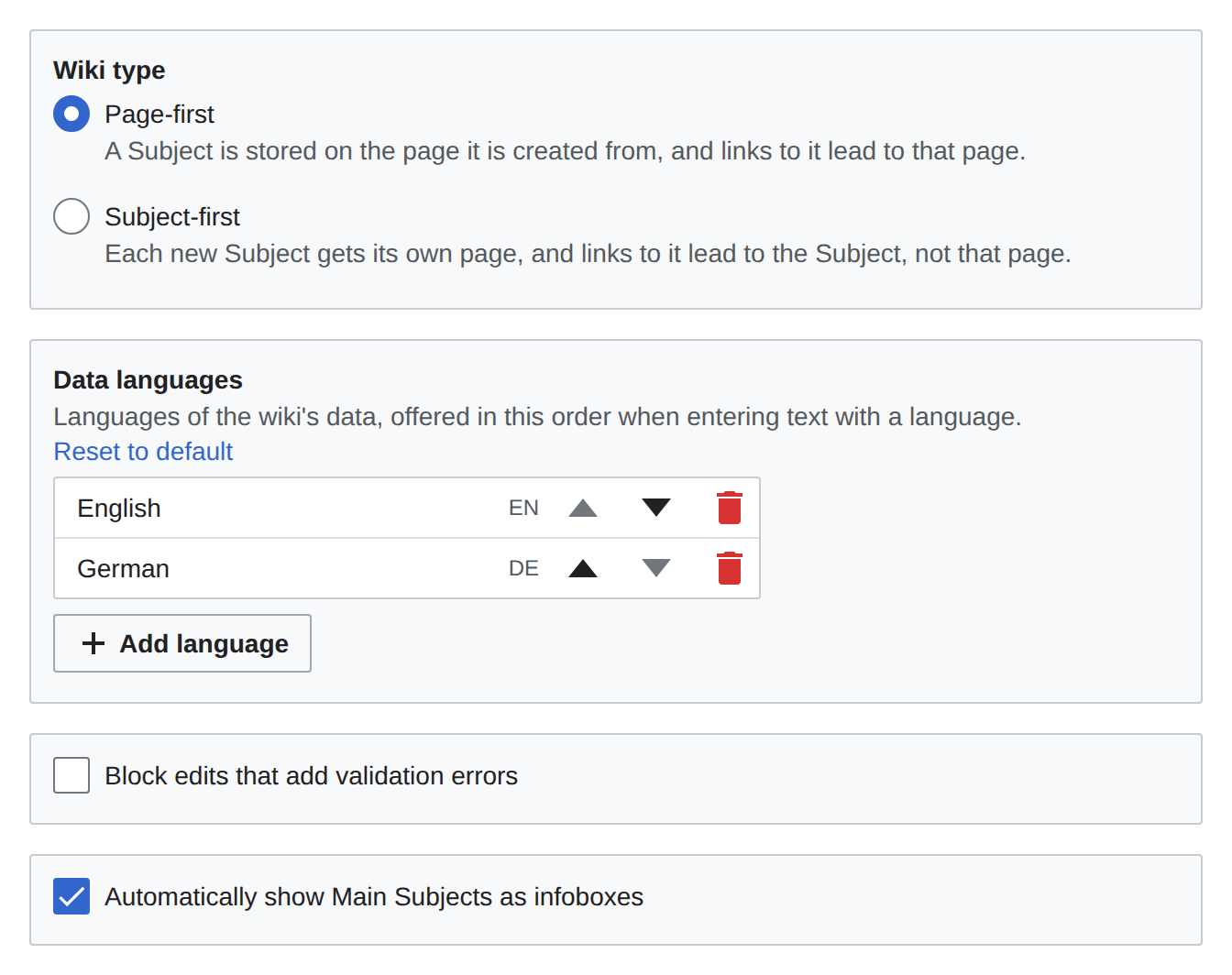
Set $wgNeoWikiEnableInWikiConfig to false to disable on-wiki settings.
Per setting, a valid value on the page overrides LocalSettings.php. Pages rendered before a change can lag behind it until purged with ?action=purge.
Optional: SPARQL graph stores
With or without Neo4j, NeoWiki can keep one or more SPARQL 1.1 graph stores in sync with page changes. This works with QLever, Oxigraph, Fuseki and any other SPARQL 1.1 store. Each configured store receives the NeoWiki data as RDF: every page becomes a named graph, replaced on each edit and dropped on deletion.
Configure the stores with $wgNeoWikiSparqlStores, a list of objects:
$wgNeoWikiSparqlStores = [
	[
		// Required: the store's SPARQL 1.1 Update endpoint (the write path posts here).
		'updateUrl' => 'https://qlever.example/api/neowiki',
		// Optional: the store's SPARQL 1.1 Query endpoint (the read path posts here).
		// Defaults to updateUrl, which is correct for QLever, where the two are the same.
		'queryUrl' => 'https://qlever.example/api/neowiki',
		// Optional: sent as an HTTP Bearer token (e.g. a QLever access token) on both update and
		// query requests — QLever only requires it for updates, but a read-protected store needs it too.
		'accessToken' => 'SECRET',
		// Optional: the RDF vocabulary written to this store. Defaults to 'native'; otherwise a
		// Mapping page title without the prefix ('EDM' for Mapping:EDM). As with any page title,
		// only the first letter is case-insensitive.
		'projection' => 'native',
	],
];
Each store's name identifies it when rebuilding one store, so no two entries may share one, and none may be neo4j in any casing — reserved for the bundled Neo4j backend. Since the name defaults to the projection, two entries holding the same projection — mirroring it to a second endpoint, say — collide until one of them sets an explicit name.
An entry whose updateUrl is missing or empty, or whose name cannot identify it, is skipped with a warning on the NeoWiki log channel rather than failing the wiki, so its store receives no page changes.
QLever
Start qlever-server, from a build of August 2026 or later, with:
--persist-updates, or a restart loses NeoWiki's writes.--rebuild-index-strategy automatic:10000:50000:0.1, or saves slow as the wiki grows.--rebuild-keep-previous-index-dirs none, or each index rebuild leaves the index it replaced on disk.
Oxigraph
Oxigraph serves queries on /query and updates on /update, so an entry needs both:
$wgNeoWikiSparqlStores = [
	[
		'updateUrl' => 'https://oxigraph.example/update',
		'queryUrl' => 'https://oxigraph.example/query',
		'projection' => 'native',
	],
];
Oxigraph has no authentication and ignores accessToken: it accepts every request, updates included, from anyone who can reach it. Put it behind network isolation or an authenticating reverse proxy, and see Restricting federation.
Fuseki
Fuseki serves each dataset under its own path, queries on /query and updates on /update below it:
$wgNeoWikiSparqlStores = [
	[
		'updateUrl' => 'https://fuseki.example/ds/update',
		'queryUrl' => 'https://fuseki.example/ds/query',
		'projection' => 'native',
	],
];
A dataset's endpoints accept every request, updates included, from anyone who can reach them: Fuseki's shipped configuration protects its admin interface, not its data. Put it behind network isolation or an authenticating reverse proxy, and see Restricting federation.
Several projections in one store
Each entry carries one projection, so a store that should hold several gets one entry per projection, all with the same updateUrl. Each projection writes its own named graphs, so they never overwrite one another:
$wgNeoWikiSparqlStores = [
	[
		'updateUrl' => 'https://qlever.example/api/neowiki',
		'accessToken' => 'SECRET',
		'projection' => 'native',
	],
	[
		'updateUrl' => 'https://qlever.example/api/neowiki',
		'accessToken' => 'SECRET',
		'projection' => 'EDM',
	],
];
Sibling projections mint the same entity IRIs, so one query can combine data from both — the target ontology's terms alongside a property that ontology does not model. The Person-to-EDM example shows such a query.
A newly added entry only receives pages saved from then on. Backfill it, and only it, by rebuilding that one store.
Editing a Mapping page leaves every page already projected under it in the old vocabulary until the store is rebuilt: see stale stores, which also covers $wgNeoWikiAutoRebuildOnMappingChange.
Querying a SPARQL store
When at least one store is configured, three read-only query surfaces become available and target the first configured store:
- The
{{#sparql_raw}}parser function. - The
nw.sparqlQuery()Lua function. - The
POST /neowiki/v0/query/sparqlREST endpoint.
Each is read-only: the query is sent as a SPARQL 1.1 query operation, posted only to queryUrl and never updateUrl.
A projection configured on a different endpoint is therefore not reachable from these surfaces.
NeoWiki writes pages into named graphs and nothing into the default graph, so whether an unscoped query finds them is the store's choice; see RDF Export.
Both bundled Docker stacks, demo and dev, ship working QLever and Oxigraph examples wired up this way — see Docker/README.md for the services and how to query them.
Restricting federation
The query surfaces are read-only, but SPARQL's SERVICE clause lets a query direct the store to fetch results from another endpoint. The store makes those requests itself, from its own network position — often one that reaches internal services the wiki's visitors cannot. Restrict federation at the store unless you mean to offer it.
QLever allows every SERVICE IRI unless --service-allowed-iri-prefixes is given. Pass the IRI prefixes you want to allow, or the deny-all value - (an invalid prefix that no IRI matches):
# No federation:
qlever-server -i neowiki -p 7019 -m 1G --service-allowed-iri-prefixes -

# Or allow only specific endpoints:
qlever-server -i neowiki -p 7019 -m 1G --service-allowed-iri-prefixes https://sparql.example.org/
The bundled Docker stacks set the deny-all value on their QLever services, so those do not federate unless you change it. The setting can also be changed at runtime through the store's endpoint by anyone holding its access token, so keep that token secret.
Oxigraph has no equivalent setting and will attempt the outbound request; the stacks' Oxigraph services federate for that reason. Other stores vary — consult their documentation. Where you cannot restrict the store, restrict around it: block its outbound traffic at the network layer, and narrow who holds the neowiki-query right — see Narrowing neowiki-query.
Production hardening
NeoWiki is pre-release, so this is not needed for an evaluation. It applies later, when NeoWiki is production-ready.
Separate read and write Neo4j users
Give read and query traffic its own Neo4j user that cannot modify the graph. Create a read-only user:
CREATE USER neowiki_read SET PASSWORD 'SECRET' CHANGE NOT REQUIRED;
GRANT ROLE reader TO neowiki_read;
Then update the read URL to use it. Leave the write URL on the full-access user:
$wgNeoWikiNeo4jInternalWriteUrl = 'bolt://neo4j:SECRET@neo4j-host:7687';
$wgNeoWikiNeo4jInternalReadUrl  = 'bolt://neowiki_read:SECRET@neo4j-host:7687';
This needs Neo4j Enterprise. On Community Edition, keep both URLs on the same user.